To find B2B leads in ChatGPT, add a contact database as a custom MCP server, select it in a Work chat, then ask it to count matches for your ideal customer profile (ICP). Check the search filters and review a small sample before exporting a list.
I’m a co-founder of GetLeads, the database used in this example. The walkthrough shows how to set up the GetLeads plugin, confirm which tool ChatGPT actually used and review the parameters of an export.
1. Add GetLeads as a ChatGPT plugin
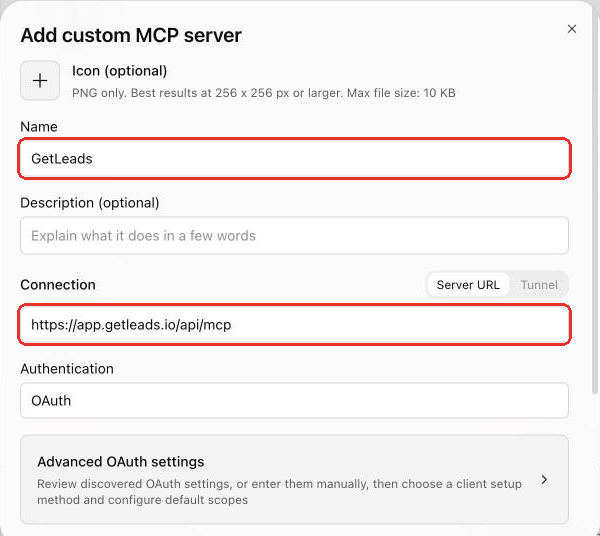
- Open ChatGPT Plugins in your web browser. Select Add, then Add custom MCP server.
- Name the plugin GetLeads. Select Server URL, enter
https://app.getleads.io/api/mcpand choose OAuth for authentication. - Review the warning and select Create as a plugin. Install it from your plugins if ChatGPT prompts you to do so.
- When prompted to continue to GetLeads, sign in and choose Allow. The OAuth flow uses your GetLeads login.
- Start a new Work chat on the web. Type
@GetLeadsand select the installed plugin from the suggestions.
If the option to add a server is missing in a managed workspace, ask your admin to check your permission to create and use custom MCP plugins. See the ChatGPT workspace plugin controls. The GetLeads connector guide shows the sign-in screens.
2. Verify which tool ChatGPT used
With the plugin selected, start with a tool call that reads the list of available search fields. This checks the connection without retrieving lead records.
Use the GetLeads plugin to call
get_available_columns. Tell me which returned fields I can use to check company headquarters and a person’s job title. Stop after the field lookup.
Expand the tool call in ChatGPT and check that the app is GetLeads and the tool is get_available_columns. The tool output should contain field information. If ChatGPT returns prose without a GetLeads tool call, reselect the plugin and try again. If a tool is missing, check the plugin’s app settings. ChatGPT can refresh the list of tools and lets you turn individual tools on or off. See OpenAI’s custom MCP server guide.
3. Count and preview a B2B audience
Say your agency sells appointment-setting services to UK cybersecurity providers. You want founders and people who lead sales. Start by checking which company industry labels cover that market. Review a few companies, then search for people at the domains you approved. Keep founder titles and sales leadership titles in separate groups so you can see which roles are missing. Count their combined audience once where the search supports it, since a founder may also lead sales.
Use GetLeads to find UK-headquartered cybersecurity providers. Show the industry values and company filters you plan to use, count the matches with
count_companies, then usesearch_companiesto show up to five names and domains. Flag any company whose fit is unclear. Wait for me to approve the domains.
Search only the domains I approved. Look for founders and senior sales leaders, including Head of Sales, VP of Sales and Sales Director. Show how you grouped the titles and count the combined contact search with
count_contacts. Usesearch_contactsto preview up to 10 people. Return name, title, employer, company domain, LinkedIn URL and work-email status where available. Stop before enrichment or export.
Open the contact search’s tool call and check the company domains, title filters and sample limit. Pay attention to the difference between company headquarters and a contact’s own location. If a title or employer looks wrong, revise the filters and count again. Use the GetLeads search guide for title variants, exclusions and overlapping searches.
4. Review the leads and confirm the export
- Check the role and employer. Keep the title returned by GetLeads alongside your review decision. Flag ambiguous matches and review likely duplicates before merging them.
- Preserve the email status. Leave missing values blank. A catch-all result leaves the individual mailbox unconfirmed. If a shortlisted person is missing a field you need, look up that person with a supported enrichment tool and check the returned fields.
- Choose what you are exporting. If you approved individual rows, keep those exact rows from the preview. For a larger GetLeads export, approve the search filters, columns and row cap. A fresh export runs against the approved filters and can include contacts beyond the preview.
Show the proposed GetLeads export filters, columns and maximum rows. Wait for my approval before calling
export_contacts. After I confirm, start the export and usecheck_contact_exportto retrieve its status.
Review any ChatGPT confirmation before approving it. GetLeads also requires an explicit confirmation on the export tool call. Counts are free. Searches, exports and standard enrichment draw on plan credits or account fair-use allowances. Check your allowance with get_fair_use before scaling. The GetLeads API and MCP reference lists the tools and billing rules.