To build a B2B lead list in Claude, connect a contact database through a remote MCP server, describe your ideal customer profile (ICP), and review a small sample before exporting. The connector lets Claude call the database’s search tools and report the records they return.
I’m a co-founder of GetLeads, which I use for the walkthrough below. The example prompts target HR leaders at U.S. software companies. The same review process applies to another audience, but the available filters and actions depend on your connector.
1. Connect GetLeads to Claude
- In Claude on the web or desktop, open Customize → Connectors. In the Add menu, choose the option for a custom web connector.
- Name it GetLeads and enter
https://app.getleads.io/api/mcpas the remote server URL. - Finish adding the connector, choose Connect, and sign in to GetLeads to authorize access. This sign-in flow uses OAuth; it does not need a GetLeads API key.
- In a new Claude chat, open + → Connectors and enable GetLeads. Ask Claude to check which GetLeads search tools it can use before starting.
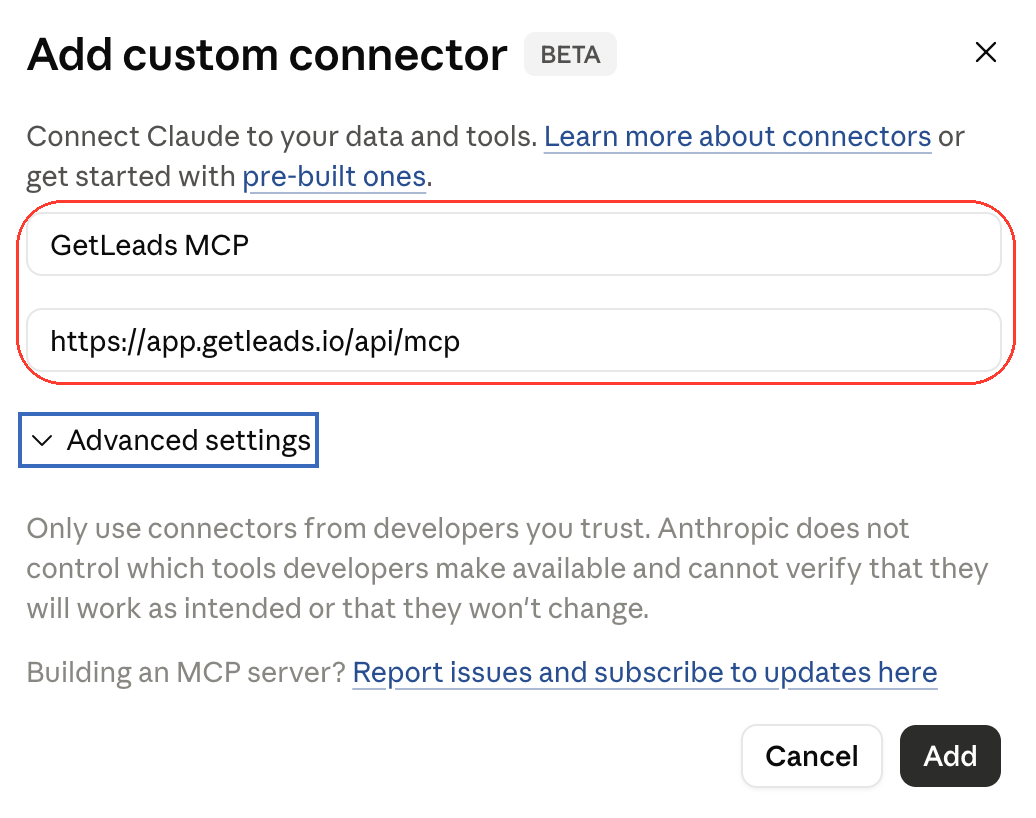
On Team or Enterprise, an authorized workspace admin must add the connector before members can connect. For the shortcut and current setup screens, use the GetLeads connector guide and Anthropic’s custom connector instructions.
2. Count target companies before pulling contacts
Say you sell onboarding software and want HR leaders at U.S.-headquartered software companies with 50–200 LinkedIn employee profiles. That range measures profiles associated with the company on LinkedIn. If actual headcount is a hard requirement, verify it separately. Start by checking which industry values represent your target and reviewing a few companies before asking for people.
Use GetLeads to find U.S.-headquartered software companies with 50–200 LinkedIn employee profiles. Show me the exact company filters and any assumptions about industry labels. Count the matching companies first. Then show up to five company names and domains so I can check fit. Wait for me to approve the domains before looking up people.
GetLeads documents count_companies for the count and search_companies for the preview. If the results are sparse, have Claude check the supported industry values before dropping a requirement. Keep company headquarters separate from where a contact lives.
3. Review a 10-person sample at the approved companies
Group title variants by the person’s likely responsibilities. Here, VP of People, Head of HR and HR Director are routes to the same HR leadership audience. Count the combined search so someone who matches more than one title route is not counted twice.
Use only the company domains I approved. Find HR leaders with titles such as VP of People, Head of People, Head of HR, HR Director or Director of Human Resources. Show the title filters and count the combined contact search. Then show up to 10 matches spread across the approved companies. Include name, current title, company, domain, LinkedIn URL and work-email status where available. List any domains with no matches. Stop before enrichment or export.
Use count_contacts to size the search and search_contacts to inspect the sample. Compare the actual job title with your audience brief: a broad department or seniority label can hide a mismatch. Use the sample to catch obvious problems with the filters; ten records cannot establish the accuracy of the full list.
4. Clean the list and export only after review
Mark each sampled contact Keep, Review or Exclude and give a reason. Flag conflicting titles, missing fields and possible duplicates. Apply any suppression list I’ve provided. Show what you would change in the search, then wait for my approval before pulling a larger batch or exporting a CSV.
- Deduplicate people. A person can have more than one profile URL. Where there’s a work email, compare normalized names and emails. Review ambiguous records before merging them, especially if an address is missing.
- Enrich selectively. If an approved contact lacks a field you need, use the documented enrichment tool for the identifier you have. A database match may still have blank fields.
- Check email status. GetLeads labels a verified address
VALID.CATCH_ALLdoes not confirm the individual mailbox, andUNKNOWNis unverified. Verify addresses before sending. - Match the export to what you approved. For a larger search, confirm the filters and row count before starting the CSV export. If you only approved the reviewed sample, keep that set of rows. Running the same filters again can include other people.
GetLeads counts are free. Searches, exports and enrichment draw on plan credits or fair-use budgets, depending on your account. Check your account allowance before scaling. The GetLeads API and MCP reference explains billing and the export_contacts and check_contact_export tools; the GetLeads search guide covers title variants, exclusions and overlap.
If the connector works but your list looks wrong
- No GetLeads tools appear: Check that you finished sign-in, enabled the connector in this chat, and have workspace access. Ask Claude to confirm it can call the connector.
- You have company matches but no contacts: Confirm the domains carried over and test title variants separately. Check that you haven’t accidentally required the person to live in the same country as the company’s headquarters.
- You have too many weak matches: Separate required titles from broader candidates for review. Recount and preview before using the revised search for a bigger pull.
If you’re still choosing a database, see the comparison of MCP servers for lead generation.