I use Claude or ChatGPT with GetLeads to turn an ideal customer profile into a checked lead list - not an automatic email campaign. My first step: connect through MCP or API, check account credits, and test a search with 5 contacts before spending more.
Here’s the workflow I follow:
- Define the target: Separate required filters from preferences, and confirm which fields GetLeads supports.
- Connect and test: Use MCP for interactive searches or the API for scripts. Store credentials safely and check results, errors, and credit usage.
- Enrich and audit: Fill data gaps, verify emails, remove duplicates, and flag uncertain matches without guessing.
- Export for review: Keep ICP fit separate from outreach eligibility, apply suppression and consent checks, and set the next batch’s budget.
The small test should cost 5 B2B credits plus 1 scrape credit for one enrichment. And my rule before launch is simple: a verified email is not permission to send. Human approval comes before any campaign.
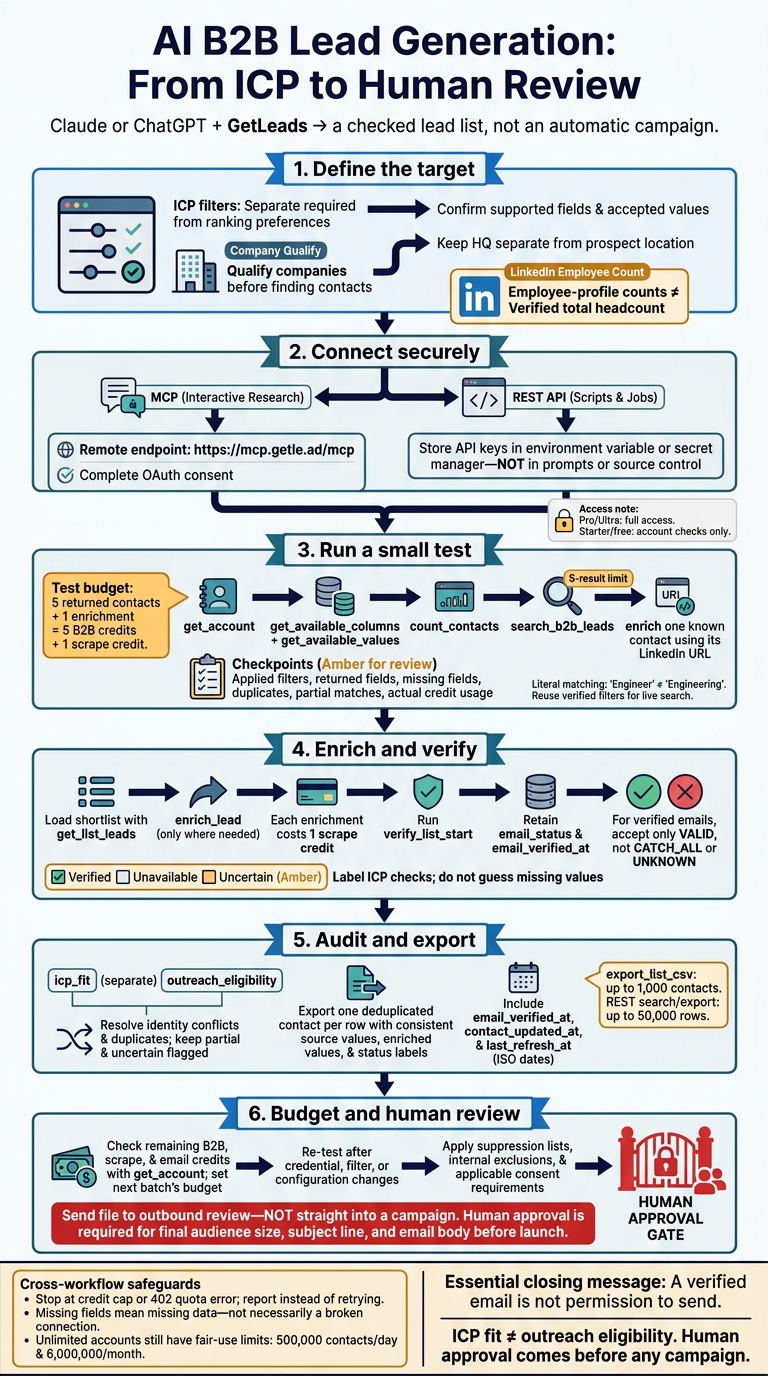
AI B2B Lead Generation: From ICP to Human Review
2. Connect Claude or ChatGPT to GetLeads
With your ICP, fields, and credentials ready, you can connect Claude or ChatGPT to GetLeads.
Choose MCP or API Access
Use MCP for interactive research and the REST API for scripts and recurring jobs. Pro or Ultra plans provide full access. Starter or free workspaces support account checks only.
| Setup detail | MCP | REST API |
|---|---|---|
| Setup effort | Configure a supported client connection | Build and maintain request handling |
| Best use case | Interactive lead research | High-volume automation and recurring jobs |
Choose your connection type, set up access, and send a test request to check that it works.
Set Up the Remote MCP Connection
In Claude, go to Settings > Connectors > Add custom connector and paste https://mcp.getle.ad/mcp. Complete the GetLeads OAuth consent flow, then enable the connector. The connection is remote, so you don’t need a local installation or proxy. Don’t paste an API key into Claude’s OAuth flow.
In ChatGPT, enable Developer Mode under Settings > Connectors > Advanced. Create a custom MCP connection using the same HTTPS endpoint. Review the requested getlead:read and getlead:write scopes, then approve the GetLeads consent screen before running your first prompt.
Set Up API Requests and Store Credentials
Create an API key in the GetLeads dashboard. Store it in an environment variable or secret manager, not in prompts or source control. Have your script read the secret and send it using Authorization: Bearer ... or X-API-Key. Retrieve field definitions with GET /api/v1/contacts/columns, then map the responses to your existing lead schema.
Set up pagination, retries, and rate limits before scheduling jobs. REST search supports limit and offset, with up to 5,000 rows per page. Stop when has_more is false, and honor Retry-After when you receive a 429 response.
sbb-itb-d2d4ea9
3. Test the Connection and Search for Leads
Test Tools, Filters, and Enrichment
Before testing searches, confirm that the connection is active in your client. Run get_account, then use get_available_columns and get_available_values to check filter names and accepted values. Ask the assistant to list the available tools and their accepted inputs. Check that the tools, filters, and enrichment return the records you expect.
Run count_contacts before testing search_b2b_leads with a 5-result limit. Check literal filter matching: “Engineer” does not automatically match “Engineering.” Make sure the returned fields match your export schema, especially LinkedIn URL, work email, title, seniority, and company domain.
Next, enrich one known contact using their LinkedIn URL and check credit usage. Five returned contacts and one enrichment should use 5 B2B credits and 1 scrape credit. Record the applied filters, missing fields, duplicates, partial matches, and actual credit usage. Use those same verified filters in your first live search.
Write Prompts for Targeted Lead Searches
Separate required criteria from ranking preferences. For company-level requirements, such as size or technology stack, qualify companies first, then find contacts. The employee_profiles_on_linkedin_min/max fields count LinkedIn employee profiles - not verified total headcount.
Once you’ve confirmed the filters, use this targeted prompt for the full search:
Find 5 CMO contacts at U.S.-headquartered companies with 50–200 LinkedIn employee profiles and Salesforce in the tech stack. Keep company HQ separate from prospect location, rank complete matches above partial ones, and report applied filters, unsupported criteria, duplicates, and partial matches separately.
Fix Connection Errors and Review Weak Matches
If a request fails, check credentials and permissions, then read the status code: 401 = credentials, 403 = permissions, 400 = invalid inputs, 402 = quota.
For empty or inconsistent results, recheck supported values and title matching before suggesting broader criteria. Missing fields mean missing data, not a broken connection. Keep partial matches separate. For verified emails, accept only VALID, not CATCH_ALL or UNKNOWN.
Stop when you reach your credit cap or get a 402 quota error. Report the message instead of retrying. Keep the clean matches and move them into enrichment and export.
4. Enrich, Check, and Export Contacts
Enrich Shortlisted Contacts and Check ICP Fit
Load your saved shortlist with get_list_leads, then call enrich_lead for each contact using their LinkedIn URL or name plus company. Request missing contact, company, and technology fields. Each enrichment costs 1 scrape credit, so skip records that already have the data you need. Then standardize the fields for export.
Score icp_fit separately from outreach_eligibility. Compare current_title, seniority_level, is_current_role, company_size, and technologies against your saved ICP. Mark each check verified, unavailable, or uncertain, and keep those labels in the export for a consistent review.
After enrichment, run verify_list_start and retain email_status and email_verified_at. Check each verified field against the saved ICP before exporting.
Email verification alone doesn't approve a contact for outreach. Apply suppression lists, internal exclusions, and applicable consent requirements first. A populated email address - or a strong ICP match - doesn't establish permission to contact someone.
Audit Results and Export a Consistent Lead List
Use this audit prompt before exporting:
Audit the enriched shortlist against the saved ICP. Count contacts by title, seniority, company size, location, and missing required fields. Report duplicates, partial matches, conflicting values, and unverifiable claims. Keep ICP fit separate from outreach eligibility, and flag contacts needing suppression, consent, or internal-exclusion review. Do not fill gaps with guesses.
Export one deduplicated contact per row. Use consistent headers for source values, enriched values, status labels, ICP fit, and outreach eligibility. Include email_verified_at, contact_updated_at, and last_refresh_at where available. Use the current date in summaries and ISO format in exports.
add_leads_to_list skips duplicates when appending, but review identity conflicts before export. Use export_list_csv for up to 1,000 contacts, or REST search/export for up to 50,000 rows. Use the resulting file as the input for the final outbound-readiness check.
5. Check Readiness for Outbound Review
Before outbound review, check that the exported list matches the saved ICP, uses approved fields and filter values, has no unresolved duplicates, and flags missing or uncertain values. Confirm that the small search-and-enrichment test passed. Run another quick verification search after any credential, filter, or configuration change.
Next, call get_account to check remaining B2B, scrape, and email credits, then set a budget for the next batch. Unlimited accounts still have fair-use limits: 500,000 contacts per day and 6,000,000 per month.
Send the file through outbound review - not straight into a campaign. Move it to launch only after a human reviewer approves the final audience size, subject line, and email body.
FAQs
How often should I refresh my lead list?
Update your lead list regularly and re-verify it before every outreach campaign. People change jobs, and email addresses can stop working. Use verify_list_start to run a bulk SMTP handshake check and sort addresses as valid, invalid, or catch-all.
These checks help keep deliverability high and outreach accurate while supporting the platform’s typical bounce rate of under 2%.
How can I improve searches with too few matches?
Broaden your filters by removing restrictions or adding job title variations and related seniority levels. Filters use AND; values within a single filter use OR. Ask your AI assistant to review the available filters and suggest alternatives.
Still getting too few matches? Use scrape_leads_start to scrape live web and social sources. Or find companies first, then identify the relevant people. Check your changes with the count tool before exporting.
How should I resolve conflicting lead data?
Use enrichment tools to cross-check existing records against updated database information. If you suspect a contact has changed jobs, send their LinkedIn URL, work email, or name and company to enrichment endpoints. Check current_role_status and role_start_date before relying on an old company association.
For email data, use verify_email or verify_list_start to perform an actual SMTP handshake. Stored email addresses may be unverified or out of date.